Full Stack
NewsAPI Article and Keyword Search
A real-time article search page capable of providing ideas for blog post ideas and marketable keywords for copywrite and SEO support.

Python · Flask · JavaScript · Azure
Summary
This project is called NewsAPI Article Search and Keyword Filter. It was built with the idea in mind to provide article information based on your search, and provide the essential keywords that you would need to focus on blog post copywrite, or advertising.
Features

At the top left, we have the search features section titled "Article Selections" which takes in user input for date, category, source, and keywords they may want to search by.
On the right side, we two other sections; "Keyword Exclusion" and "Keyword Exclusion List". In this area, it allows us to filter the articles by keywords we do not want to see appear in our search. For example, if you are searching for "Apple" for the latest iPhone event, but don't want to see "health" articles based on the Apple Watch, you would type this in the "Add - Keyword Exclusion List" box, along with any other keywords, and click submit below, which will then create a list of keywords that would appear under "Keyword Exclusion List".
And if You wish to remove those keywords, you can simply click on the X button on each one, or type them in the "Remove - Keyword Exclusion List" box, and resubmit.
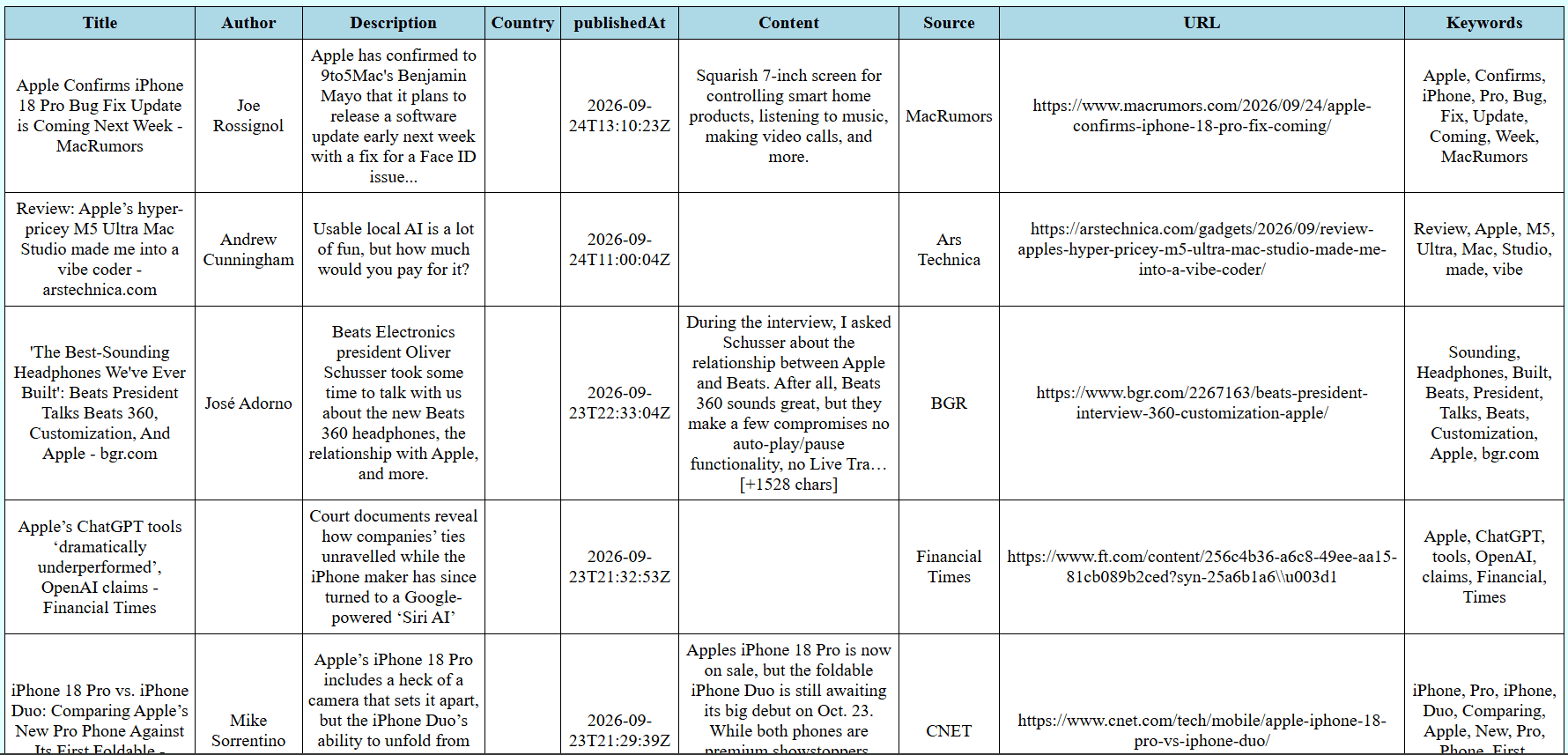
Below, you will see the table that would populate with the list of articles and respective details which will actively populate each time you modify the inputs and click submit.
Breakdown
We can break this project into a few categories:
Front-End:
The Front-End was fairly simple. It started as an HTML page, then was spruced up with some light CSS to add some color, and eventually JavaScript to make the webpage interactive.
Back-End:

The Back-End on the other hand was the majority of this project. For this, it first started with experimenting with the NewsAPI, connecting to it with my personal API key through Python in Jupyter Notebooks. I first conducted everything in Jupyter Notebooks to have a controlled environment when focusing on manipulating and saving the received data, putting much of my time in core features that would eventually evolve into the user input that we now see above.
Connecting and Storing Data
In the initial steps, connecting to the API and displaying the data was simple through Python Pandas library, converting the data from JSON into a stored table, titled "dataframe" (df). Next, I organized this data into the preferred layout, excluding certain columns, like "urlToImage" to only focus on essential data.
Keyword List
Next, I focused on choosing a source to extract keywords, and figure out how to create a Keyword List for every article record. At first, I focused on a function called "create_keyword_list" which would take the titles of every single record, pass it through a premade keyword filter list, then generate a list that would populate each row.
This was great, except the result was simply a recycled title now in list form. So the next step to this was to find a solution that would intelligently identify types of words and filter out all unnecessary words for our populated keyword lists.

This is when I found "spaCy", a Natural Language Processing library, built for Python. The key here was to use its most basic form to identify English words as a "Proper Noun", "Noun", or "Verb". This means, any non-essential words like arbitrary adjectives, articles like "a, an, the", non-alphabetical results, etc. would be excluded and filtered out along with any words that were previously listed in the preset keyword filter list.
User Input
Once the main functions of this program were in place, I then worked on the user input, first on changing the preset keyword filter list to be updateable by the user. This wasn't too difficult at first. I made two identical functions. "droplist_add" and droplist_remove" which would both:
Receive user input
Breakdown that string into separated, alphabetic keywords
Check each keyword to see if it is not already added to the keyword filter list
Run "create_keyword_list" to update each article keyword list using the modified filter.
Bridging Data to Front-End
Connecting to Front-End
After everything was tested and working in Jupyter Notebooks, I went ahead and transferred all the essential code to a VSCode python script file titled news_api.py, which served as my own API to provide all the functions necessary for this project, and process the data that would be later displayed on the Front-End.
The next challenge would have been to bridge this API to my HTML form. With some research, I chose another Python library called Flask, a lightweight Python web framework, built specifically for these cases.

Flask allowed me to create routes which would call on certain functions from news_api.py during certain page interactions. This was great because then I could connect user input for the article search "/search", keyword filtering and populating the keyword exclusion list, "/keyword-filter", and update the table actively "/keyword-remove".
This was all created in a file called app.py. This was fantastic! I could finally start running the web page locally on my computer and test everything visually. However, there was a big takeaway issue with relying solely on Flask for this project, it would reload the page each time you submitted a response. So, whenever you wanted to filter keywords from the results, it would wipe out the list with each submission. And you would have to create a new search every time you wanted to reset the results.
So, I had to return to the Front-End with utilizing JavaScript.
Fixing Front-End Refresh
JavaScript became essential for updating the webpage without forcing refreshes with every submission. In this case, I created a script.js file which served to:
Watch for each user input
Intervene when a submission is sent to the app routes
Receive the output passed out of app.py
Display them onto the page.
This means that JavaScript could display the data and everything else from app.py without app.py calling for a fresh page every single time functions were called.
Hosting
For this project, I chose Microsoft Azure which had a more intuitive interface than my past experience with AWS.

Initial Project Setup
Before starting on Microsoft Azure, I made sure to create two more files in my project folder, requirements.txt which would tell Azure what to install to run this app, and .gitignore which tells git operations which files to update when git commands are called.
Preparing Azure
Ok, it's not too complicated setting everything up in Azure, but there are quite a few steps I will begin to list:
Create the Azure resource group
Create the App Service Plan
Create the Azure Web App
Configure the Python environment
Add environment variable
Configure Gunicorn
Connect Azure to GitHub
Configure GitHub authentication
Assign a user-assigned managed identity
Give the identity deployment permission
To quickly explain what this all means, it's essentially the following:
Creating an account, setting the billing plan and alerts so that the bandwidth doesn't go beyond our budget.
Creating a Web App, setting its environment to read Python and using the Linux Gunicorn OS
Setting a user identity to the GitHub to only allow minimal access and connecting Azure to GitHub to request the files each time they are updated.
We used Gunicorn OS as a lightweight operating system meant specifically for running a program like this project.
Final Statements
This project was an incredible journey which evolved beyond my original plans at the start. In the beginning, I was hopeful to create something more mundane like a live dataset that would update with weekly articles and produce charts and tables showing the top articles based on keyword rankings.
However, I ran into a few major technical setbacks and time constraints that altered my focus on the end result. Instead of creating what I anticipated to eventually be an updating dashboard for recommended articles and keywords, I had to pivot to a limited article search engine due two main issues.
I am using the free tier of the NewsAPI which only can only perform up to a limited number of results per day and within a limited range of news sources.
This meant that calling on NewsAPI each day for a whole weeks-span of article results would call on the API at least 7x per user input, compounded by multiple users at a time interacting with the webpage.
Additionally, I did not want testing to be bottlenecked when I was still in the middle of developing this web app.
I chose to use the most basic version of spaCy for learning purposes.
For this project, I knew I wasn't going to be needing one of the more comprehensive models of spaCy, nor was I in a position to dedicate more time to enhancing this web app for complex keyword ranking. This would have meant installing one of the larger models and essentially diving into the rabbit hole of machine-learning (ML) for the purpose of identifying keyword patterns that would eventually translate into rankings by popularity and relevancy.
Though, this was part of my initial plan, I did not see ML as a priority for this project. My goal was to practice using various APIs and Python libraries to understand more of program architecture and frameworks as this project continued to evolve outside of the Jupyter Notebook environment.
In the future, I do hope to revisit ML to see what kind of solutions can be created from advanced data pattern recognition outside of simply language identification.
If I were to reapproach this project, I would have investigated much further into the initial tech stack that I would be tackling, before jumping into development as to avoid spending unnecessary amounts of time on features that would not be aligned with the final project at the end. Having a clear layout and vision of what the program would do, would have shaped each step clearer, and concise every minute to breaking down each feature bit by bit.
Additionally, knowing now how to structure the beginning research and planning, I would then be able to document every step more considerably for future references, and be able to share my findings online for community feedback.
Thank you for reading my findings, I would be happy to share any deeper technical insights or answer any questions you may have.
Please feel free to reach out to me either on LinkedIn or by submitting a contact form here.